How to Make a Seamless Pattern From Clipart (That Actually Tiles)
If you’ve ever asked an AI image tool for a “seamless pattern,” you probably know the problem. It looks fine on its own, then you tile it and there’s a hard line down the middle, a flower cut in half at the edge, or a gap where the motifs don’t line up.
That’s because most AI image tools don’t build a repeat. They make a picture that looks like a pattern. A real seamless pattern is built so that anything crossing one edge of the tile continues on the opposite edge.
This guide covers how seamless patterns work, how to make one from clipart you already own, which repeat style to choose, and how to export it for digital paper, fabric, or print-on-demand.
What Makes a Pattern Seamless
A seamless pattern is a single square tile that repeats without visible edges. For that to work, the tile has to follow one rule:
Anything that runs off one side has to come back in on the opposite side, in exactly the right spot.
If a leaf hangs off the right edge, the part that’s cut off has to appear on the left edge at the same height. If a flower crosses the bottom, its top half shows up at the top. When the tile repeats, those pieces meet and the leaf or flower looks whole.
Get that right and the seams disappear. Get it slightly wrong and you’ll see a line, a cut-off motif, or a stripe of empty space every time the tile repeats.
Why AI “Seamless” Patterns Show Seams
AI image generators create each image as one complete picture. Even when you ask for a seamless pattern, they’re guessing at what a pattern looks like, not wrapping the edges to match. Common results:
- A visible line where the left and right edges meet
- Motifs cut off at the edge with no matching half on the other side
- A color or lighting shift between edges, so the tile shows up as a grid of squares
- Uneven spacing that looks fine in one tile and obviously repeats when tiled
You can sometimes fix this with an offset and some careful cloning in your design software, but it’s slow, and it gets harder the busier the pattern is. It’s usually faster to build the pattern from separate motifs so the wrap is correct from the start.
What You Need
- Clipart or motifs as separate PNGs, ideally with transparent backgrounds. Florals, celestial elements, fruit, crystals, and small doodles all work well.
- A commercial-use license for the clipart if you plan to sell the finished pattern. Check whether the license covers patterns and digital paper specifically.
- A background: a flat color, a texture, or an image.
- A tool that wraps the edges for you. This is what makes the difference. You can do it by hand in design software, or use a pattern builder that handles it automatically.
How to Make a Seamless Pattern From Clipart, Step by Step
1. Choose your motifs
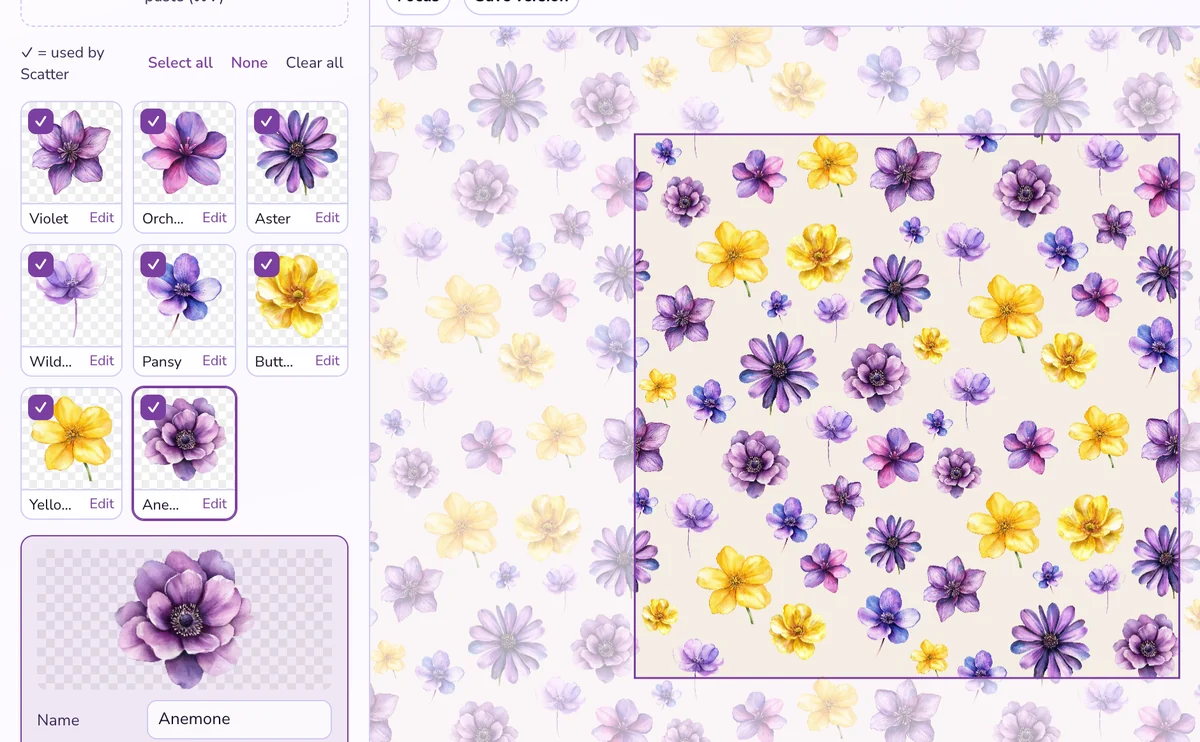
Pick three to eight elements that belong together: a main motif or two, a few supporting ones, and something small to fill gaps (dots, sprigs, stars). Mixing sizes is what makes a pattern look designed rather than stamped.
If your motifs came from an AI tool, remove the background first so only the motif is left.
2. Set your tile size
For digital paper and most print uses, a 12 × 12 inch tile at 300 DPI (3600 × 3600 px) is the standard. Smaller tiles (6 × 6 or 8 × 8 inches) give you a denser, smaller-scale pattern when repeated.
3. Pick a repeat style
The repeat style decides how the tile is laid out when it repeats:
- Straight (block) repeat: the tile repeats in a simple grid. Easy to see the structure, good for geometric or very regular patterns.
- Half-drop repeat: each column shifts down by half a tile. This hides the grid and makes florals and tossed patterns look more natural. It’s the most popular choice for digital paper and fabric.
- Mirror repeat: the tile flips side to side and top to bottom. It creates symmetrical, kaleidoscope-style designs.
- Rotate repeat: the tile turns in four directions. Good for medallion or tile-style designs.
If you’re not sure, start with half-drop.
4. Place your motifs and let them cross the edges
This is where most patterns go wrong. Place your larger motifs first, and let some of them hang off the edges. That’s what makes a pattern feel continuous instead of boxed in.
If you’re working by hand, every motif that crosses an edge needs a copy on the opposite side, offset by exactly one tile width or height. In a pattern builder that wraps edges automatically, you just drag the motif over the edge and the other half appears on the opposite side.
Then fill in with medium and small elements. Vary rotation and size a little, and flip a few motifs so they don’t all face the same way.
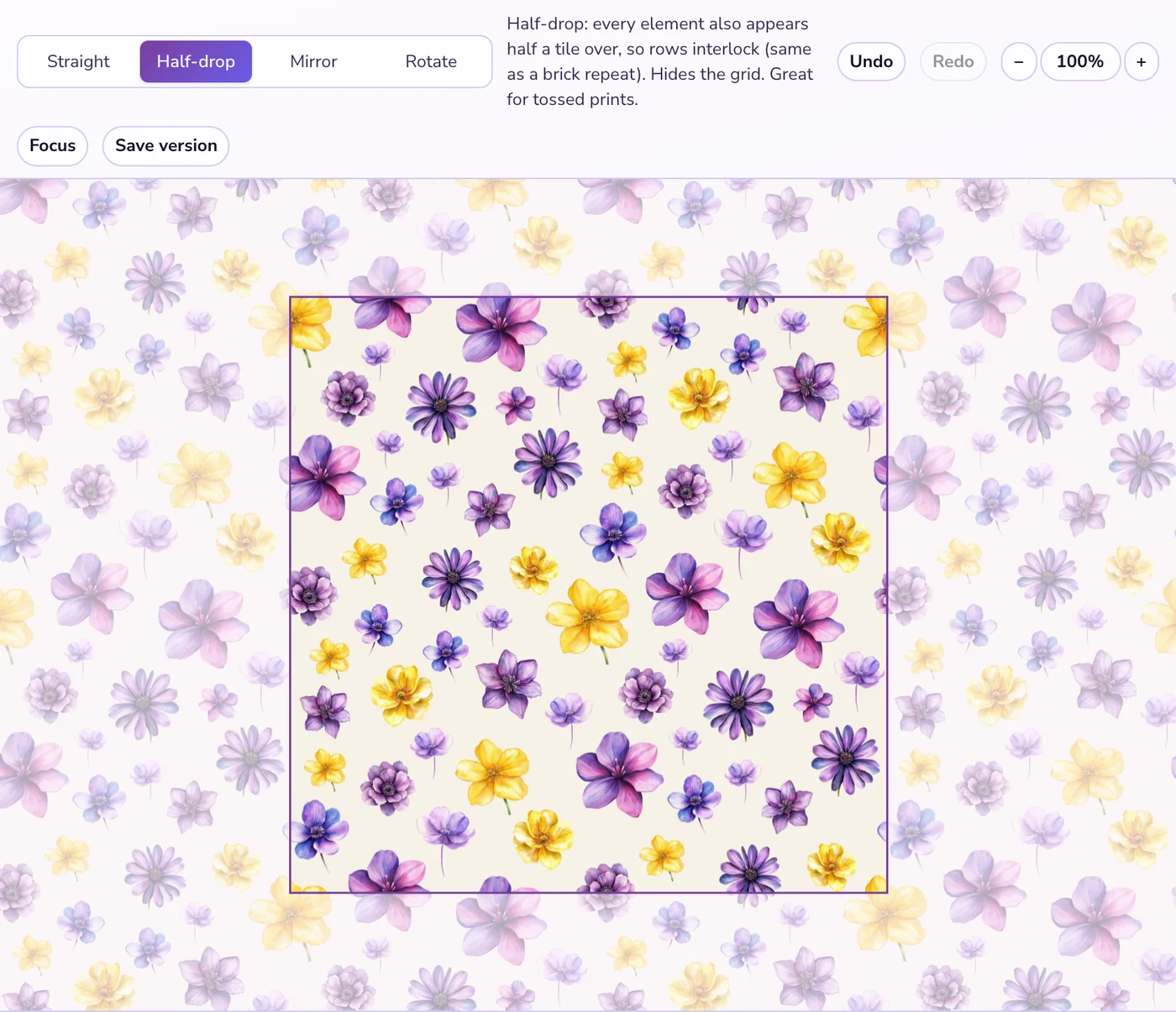
5. Check the spacing in a repeat preview
Never judge a pattern from a single tile. Look at it repeated three or four times across. You’ll spot problems that are invisible in one tile:
- Holes: empty areas that line up into stripes when repeated
- Clumps: the same motif ending up next to itself across the seam
- Tracking: a strong diagonal or line your eye follows across the whole repeat
Move a few motifs, check again, and repeat until nothing jumps out.
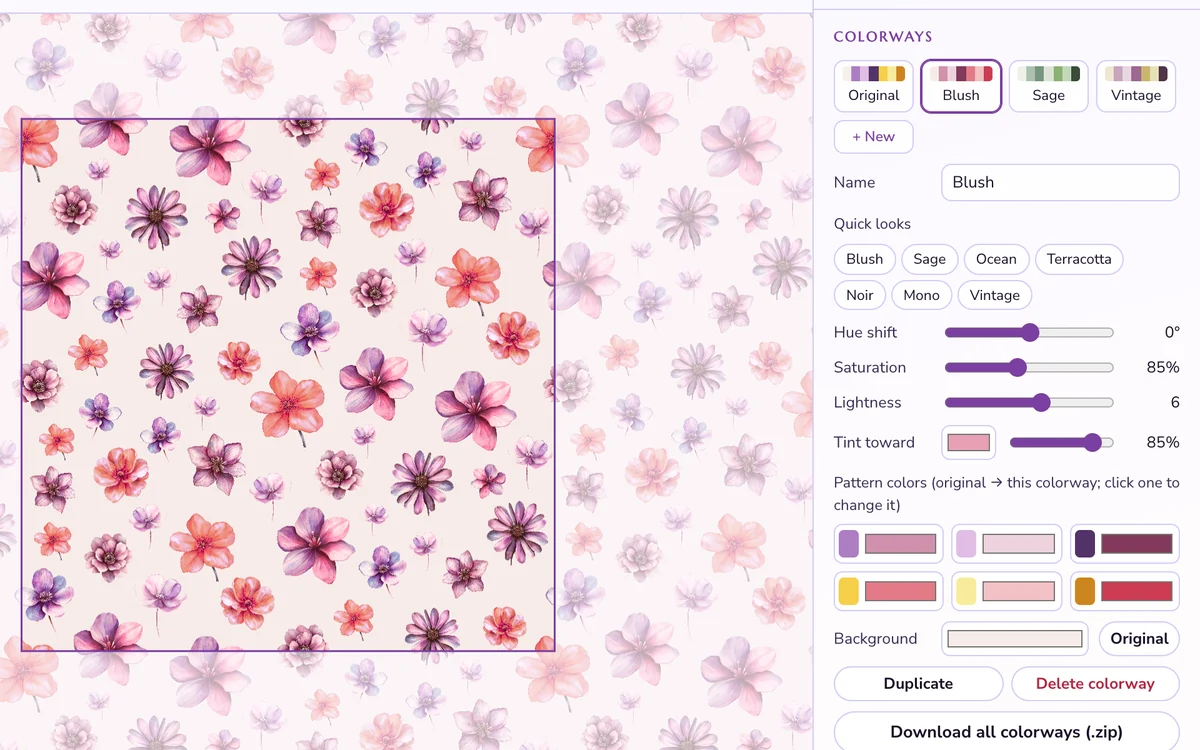
6. Try a few colorways
Once the layout works, try it on a few backgrounds and color palettes. Selling a pattern in three or four colorways is a simple way to turn one design into a full digital paper set.
7. Export at print size
For digital paper, export a PNG at 3600 × 3600 px with 300 DPI set in the file. PNG keeps the edges crisp and avoids compression artifacts that can show up as faint lines when the tile repeats. Also export a smaller preview showing the pattern repeated, for your listing photos.
Choosing a Layout for Your Pattern
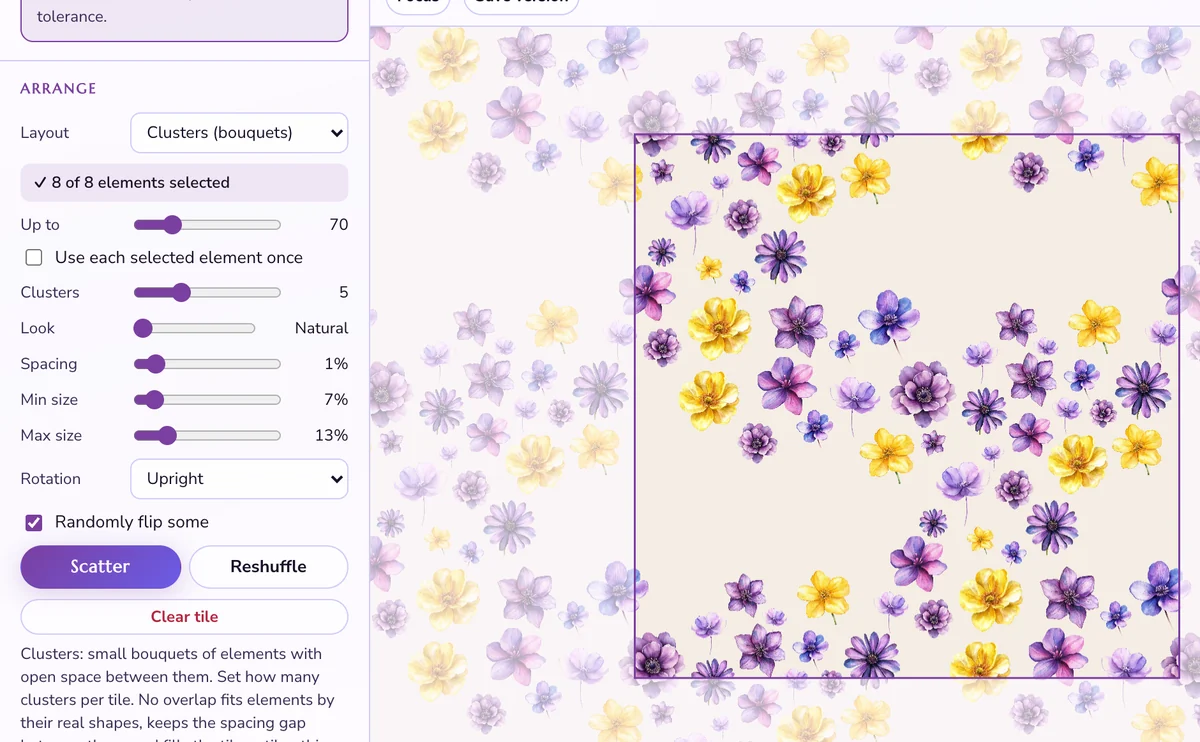
Beyond the repeat style, the layout (how the motifs are arranged) changes the whole feel of a pattern:
| Layout | What it looks like | Good for |
|---|---|---|
| Ditsy | Small, dense, scattered motifs | Florals, kids’ prints, backgrounds |
| Tossed / scatter | Motifs scattered at random angles | Most digital paper |
| Packed (allover) | Motifs touching, little background showing | Bold florals, fabric |
| Clusters | Motifs grouped into small bouquets | Botanical and cottage styles |
| Grid or diamond | Motifs in a regular arrangement | Geometric, retro, wallpaper |
| Stripes or waves | Motifs following lines | Borders, modern prints |
Common Seamless Pattern Mistakes
- Keeping every motif inside the tile. It’s tempting, but it creates a visible box. Let motifs cross the edges.
- Only checking one tile. Always preview the repeat before exporting.
- Using all the same size. Large, medium, and small elements together look more professional.
- Exporting as a compressed JPG. Compression can add faint lines at the seams. Use PNG for anything you sell.
- Ignoring the license. Make sure your clipart’s license allows patterns and digital paper for sale.
The Easiest Way to Make a Seamless Pattern: The Repeat Lab
I built The Repeat Lab because I kept running into the same problem with AI patterns for my own shop. Every “seamless” pattern needed fixing, and the fixing took longer than making the pattern.
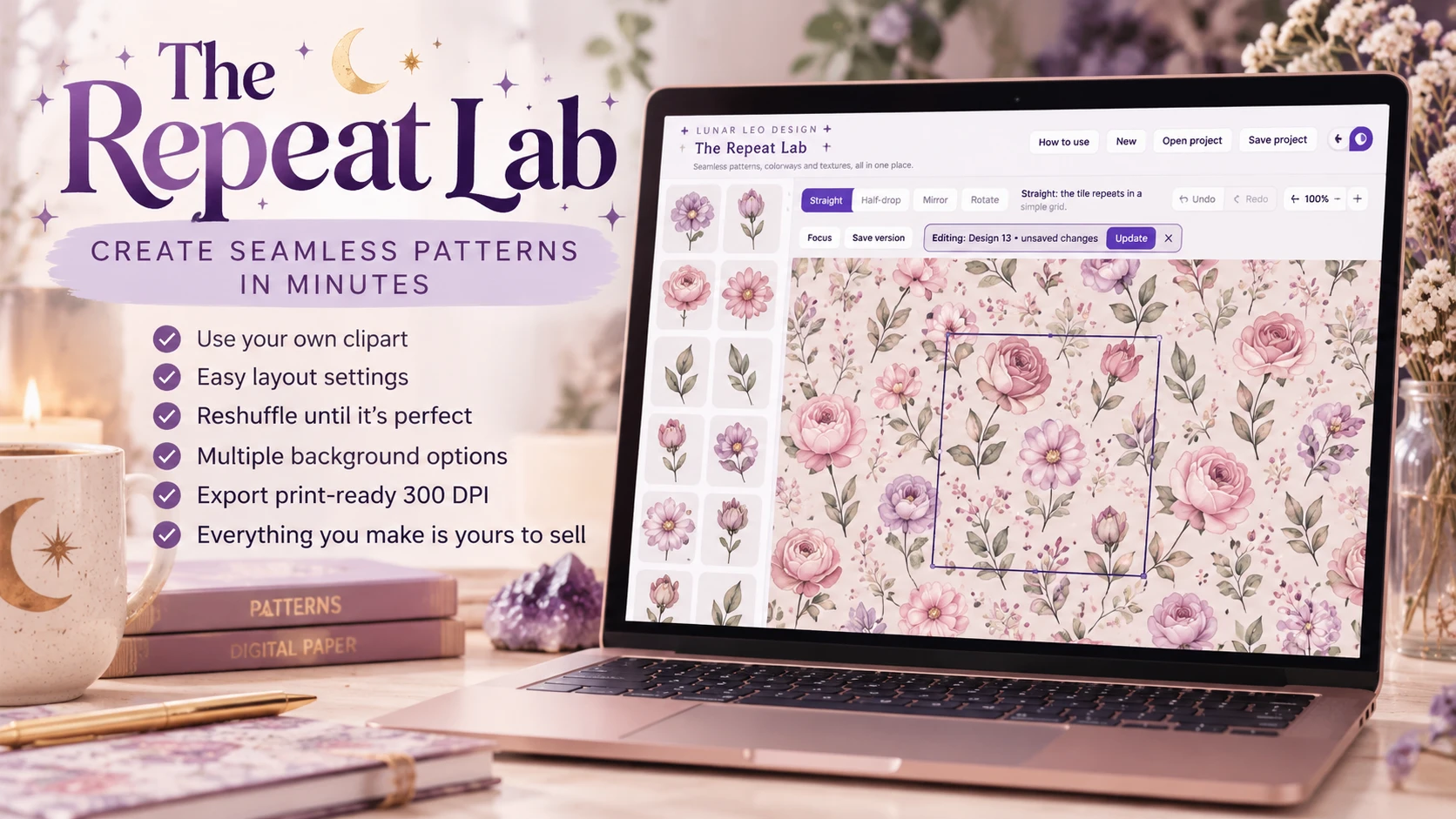
The Repeat Lab is a seamless pattern maker that works in your browser. You add your clipart, drag it onto the tile, and anything that crosses an edge wraps to the other side automatically, so the pattern is seamless from the start.
- Repeat styles: straight, half-drop, mirror, and rotate
- Layouts: ditsy, scatter, packed, clusters, grid, diamond, honeycomb, stripes, diagonal, and waves, with a no-overlap option
- Remove background for AI-generated motifs
- Backgrounds and textures: flat color, your own image, or built-in textures like linen, watercolor, marble, and paper grain
- Colorways: recolor the whole pattern and download every colorway at once
- Export: PNG or JPG at 300 DPI, up to 12 × 12 inches, plus a listing preview of the repeat
It sits in the Vault next to two more pattern tools: the Seamless Pattern Checker, which shows how any pattern tiles and highlights mismatched edges, and the Pattern Tiler, which turns a tile into a full-size background in any size. All three come with a paid Vault membership.
See how it works in the full walkthrough:
Frequently Asked Questions
What’s the easiest way to make a seamless pattern?
Use a tool that wraps your elements across the tile edges for you, so the pattern is seamless from the start instead of fixing seams afterward. In The Repeat Lab you add your clipart, hit Scatter, and download a print-ready 300 DPI tile. The video above walks through the whole process in under 10 minutes.
What size should a seamless pattern be for digital paper?
12 × 12 inches at 300 DPI (3600 × 3600 px) is the standard for digital paper and scrapbooking. It prints well and is easy for buyers to scale down.
What’s the difference between a half-drop and a straight repeat?
A straight repeat tiles in a simple grid. A half-drop shifts every other column down by half a tile, which hides the grid and looks more natural for florals and scattered designs.
Can I make a seamless pattern from AI-generated images?
Yes. Use the AI images as individual motifs rather than asking for a finished pattern. Remove the backgrounds, then build the repeat yourself so the edges wrap correctly.
Can I sell patterns I make from clipart?
Usually, if the clipart license allows commercial use for patterns and digital paper. Some licenses exclude reselling the elements in a pattern, so check before you list.
Why does my pattern have a line when it repeats?
The motifs or colors at the edges don’t match up. Either something crosses an edge without continuing on the other side, or the background shifts slightly in color between edges. Building the pattern with wrap-around placement prevents both.
Should I save seamless patterns as JPG or PNG?
PNG for anything you sell or print. It keeps the edges exact, so the tile repeats cleanly.
Start With One Pattern
Pick a small clipart set you already own, make one half-drop pattern, and check it in a repeat preview. Once one pattern tiles cleanly, colorways and full paper sets come quickly.